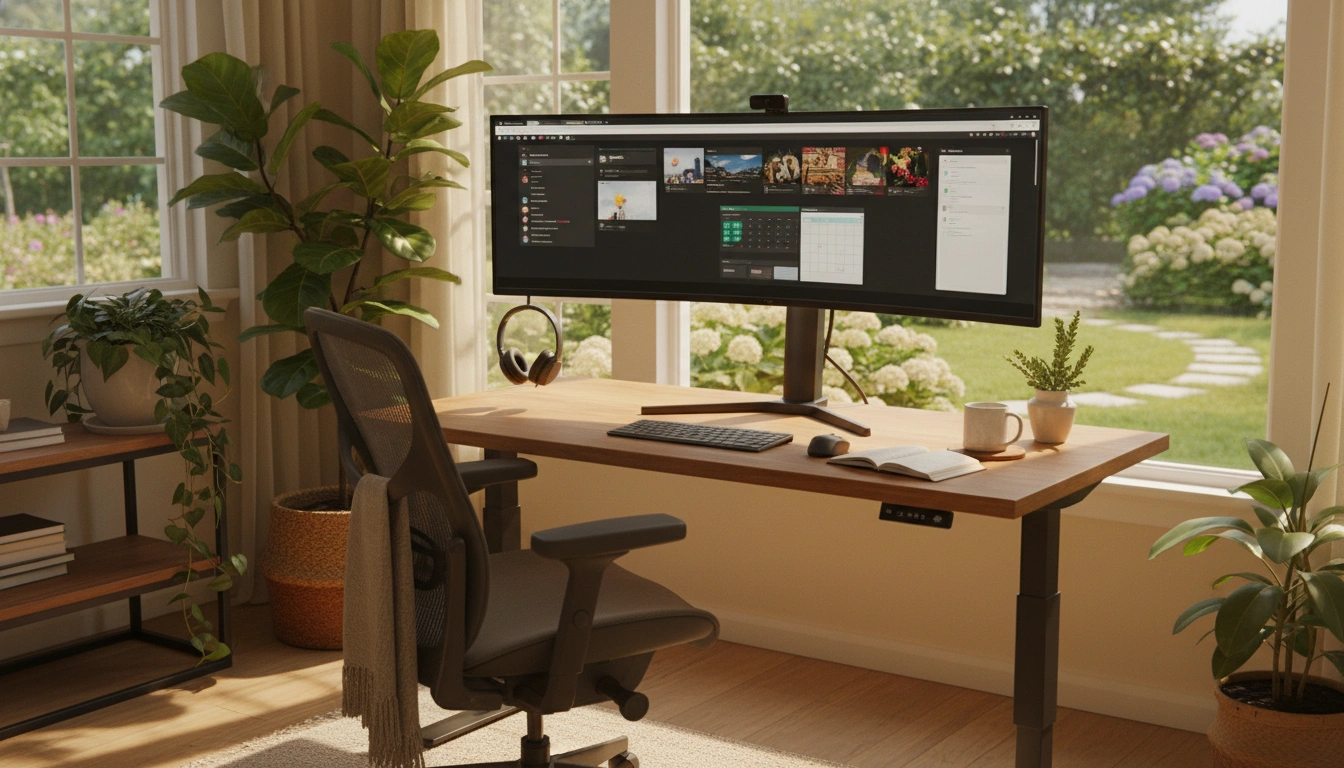
Remote workers spend 6-12 hours daily in their browser. For most remote professionals, Chrome isn't just a tool — it's the operating system for their entire workday. From video calls and project management to email, documentation, and research, nearly everything happens inside browser tabs. Optimizing Chrome for productivity, privacy, and wellness isn't just nice-to-have — it directly impacts your work output, your health, and your overall job satisfaction.
Step 1: Audit your current extensions. Most remote workers accumulate 8-12 Chrome extensions over time — a screen recorder installed for one project, a grammar checker someone recommended, a couple of ad blockers that overlap in functionality. Each extension consumes memory (typically 30-100MB), increases your browser's attack surface, and potentially slows page loading times. Open chrome://extensions and critically evaluate each one. If you haven't used an extension in the past 30 days, remove it. If two extensions serve similar purposes, keep the better one and delete the other.
Step 2: Set up a Pomodoro or focus timer. When working from home, there are no natural interruptions — no coworker stopping by your desk, no lunch bell, no commute transition to signal the end of work. This lack of structure often leads to either unfocused, scattered work or the opposite problem: marathon work sessions without breaks that lead to burnout. A Pomodoro timer built into your browser creates the structured rhythm that remote work lacks. Set 25-minute focus sessions followed by 5-minute breaks, and take a longer 15-30 minute break every two hours.
Step 3: Install privacy tools for screen sharing. This is something many remote workers overlook until they experience an embarrassing moment on a video call. When you screen share during meetings, everyone can see your open tabs, notification popups, bookmarks bar, and any visible content on the page. Privacy blur tools that can instantly obscure sensitive information — bank details, personal messages, salary information — are essential for professional remote workers. Look for tools that let you blur specific page elements and that persist across page refreshes.
Step 4: Configure health reminders. Without office social cues to prompt breaks — the water cooler trip, the walk to the meeting room, the colleague who suggests coffee — remote workers often sit for 3-4 hours straight without moving, drinking water, or resting their eyes. This is terrible for both short-term productivity and long-term health. Set up automated reminders that prompt you to hydrate every 30-60 minutes, stand and stretch every hour, and follow the 20-20-20 rule for eye health (every 20 minutes, look at something 20 feet away for 20 seconds).
Step 5: Enable screen recording capabilities. Async video communication has become the standard in remote teams, and for good reason: a 3-minute screen recording can replace a 30-minute meeting. Use screen recording to create walkthroughs of new features, document bug reports with visual context, explain complex processes to teammates in different time zones, and build reusable training materials. Choose a recording tool with no time limits and no watermarks — you don't want your professional recordings branded with a third-party logo.
Step 6: Set up a clipboard manager. Remote workers constantly copy and paste between applications — Slack messages, Jira tickets, Google Docs, code editors, email. A clipboard manager stores your last 50-100 copies with search functionality, letting you recall any previously copied text, URL, or snippet without hunting through your tab history. This single tool can save you 15-30 minutes per day in context-switching time.
Step 7: Organize your tabs and bookmarks. Tab management is a productivity skill that separates efficient remote workers from overwhelmed ones. Group related tabs using Chrome's built-in Tab Groups feature — create groups for each project, client, or area of responsibility. Use keyboard shortcuts (Ctrl+Shift+A to search open tabs, Ctrl+1-8 to jump to specific tabs) to navigate quickly. And save commonly used pages as bookmarks organized in clearly labeled folders rather than keeping them perpetually open.
Step 8: Configure notification settings. Chrome notifications can be a constant source of distraction when working from home. Go to chrome://settings/content/notifications and disable notifications from all but the most essential sites. If you use a focus timer, look for one that can automatically suppress notifications during your focus intervals and release them during breaks.
Step 9: Secure your browser with a browser lock. If you share your home with family, roommates, or if you occasionally work from a coffee shop or coworking space, a browser lock protects your open work tabs, saved passwords, and browsing session when you step away from your computer. This is especially important if you handle sensitive work data, client information, or financial details.
The ideal remote work browser setup consolidates these needs into as few extensions as possible. An all-in-one extension covering productivity (timer, clipboard, notes), health (break reminders, eye care alerts, hydration prompts), privacy (blur tool, browser lock), and communication (screen recording) reduces complexity and potential conflicts while giving you a complete remote work toolkit. OneBuddy, for example, combines all of these features into a single installation.
Final optimization: Review your Chrome performance settings. Navigate to chrome://settings/performance and enable "Memory Saver" to automatically free up memory from inactive tabs. Enable "Energy Saver" if you're working on a laptop to extend battery life during long work sessions. These built-in Chrome features, combined with a streamlined extension setup, create a fast, focused browser environment optimized for productive remote work.